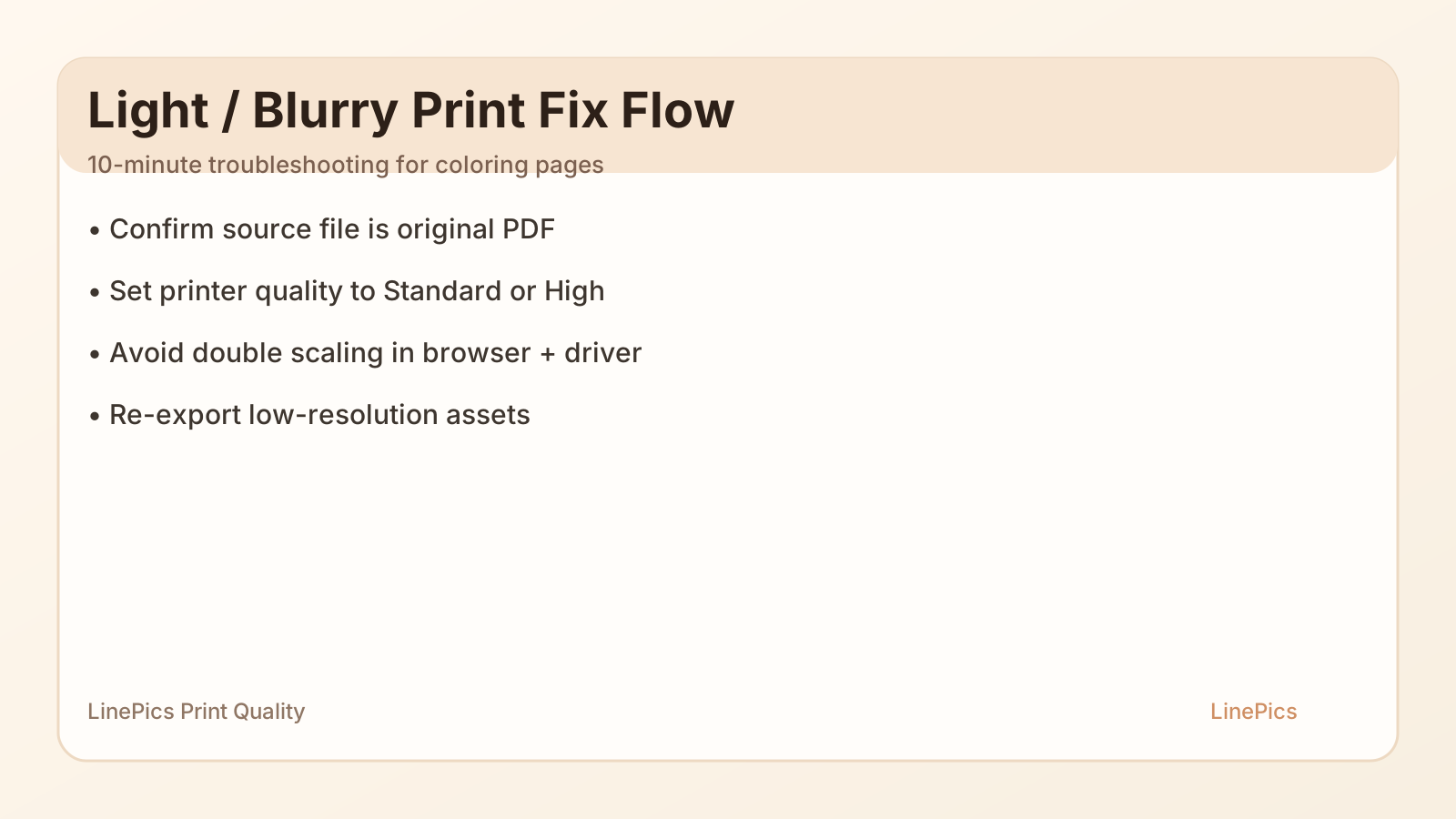
Figure: Diagnostic flow for light or blurry printable coloring pages.
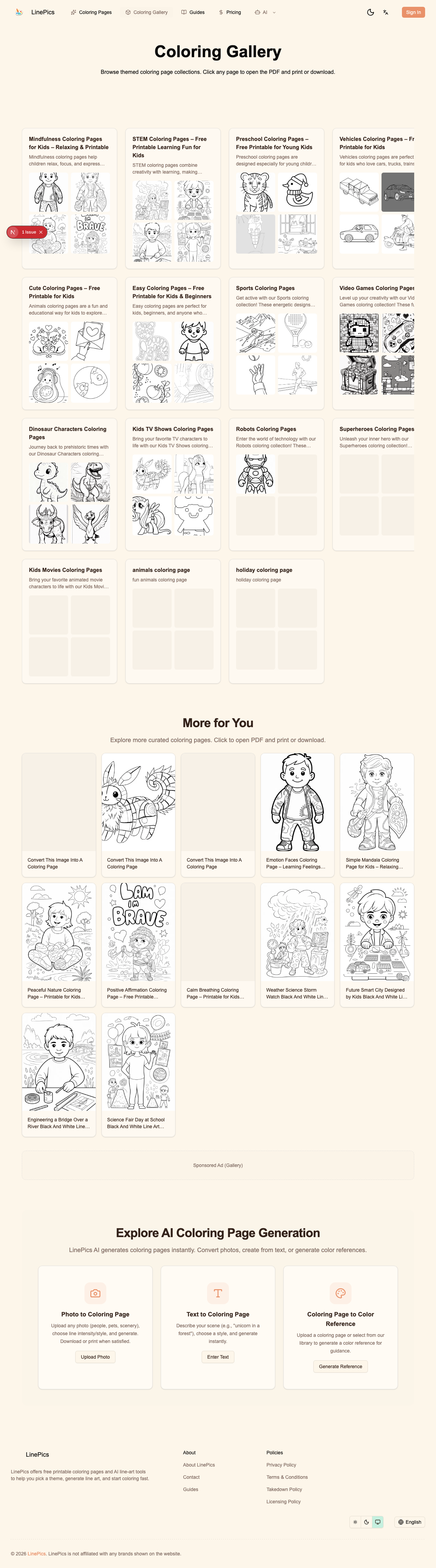
Figure: Real LinePics gallery where users pick pages before printing.
Users looking for free printable coloring pages expect crisp black lines. When lines print gray, fuzzy, or broken, they stop trusting the site even if the artwork is good.
This guide gives parents and teachers a fast diagnostic flow. It also helps site owners reduce support tickets.
The 10-Minute Diagnostic Flow
Use this order. Do not skip around.
- Print one known-good test PDF.
- Turn off Draft or Eco mode.
- Confirm paper size and scale.
- Print via browser PDF viewer, not screenshot.
- Check source file resolution.
- Clean or align print heads if inkjet output is streaky.
Most issues are solved before step 5.
Problem 1: Lines Are Too Light
Common cause: Economy mode lowers ink or toner density.
Fix:
- Printer quality: Standard or High.
- Color mode: Grayscale or Black only for line art.
- In advanced settings, increase contrast slightly if available.
If your site focuses on printable coloring pages for kids, design line thickness for real home printers, not perfect studio devices.
Problem 2: Lines Look Blurry or Soft
Common causes:
- Exported image is too small.
- File was compressed by chat apps or social sharing.
- User printed a screenshot instead of the original PDF.
Fix:
- Offer original PDF download prominently.
- Avoid JPEG-only delivery for line art.
- Re-export source at higher resolution.
Problem 3: Shapes Are Distorted or Clipped
Common causes:
- A4 file printed on Letter at 100%.
- Letter file printed on A4 at 100%.
- Borderless mode on a file that expects margins.
Fix:
- Use Fit to page when paper does not match file format.
- Keep 5 to 10 mm safe margins in your template.
Problem 4: Every Print Looks Different
Common causes:
- Shared printer with changing presets.
- Users switching browser and system dialogs inconsistently.
Fix:
- Save one printer preset named
Coloring Pages - Standard. - Keep one documented print path for your team.
File Creation Standards for Site Owners
If you run a coloring-page library, set standards once:
- Deliver PDF as primary format.
- Keep line contrast high and background pure white.
- Avoid unnecessary texture in black lines.
- Include a hidden internal quality checklist before publish.
This is especially important for coloring pages for classroom use, where one bad batch wastes paper and teaching time.
Parent-Friendly Fixes (No Technical Jargon)
You can include this mini block in your page footer:
- Download the original PDF.
- Pick the correct paper size.
- Set print scale to Fit.
- Turn off Draft mode.
- Reprint one test page.
Simple instructions outperform long technical paragraphs.
Teacher Bulk Printing Tips
For class packets:
- Print one page from each file first.
- Group files by paper size before bulk print.
- Keep one backup folder with verified PDFs.
- Label worksheets by difficulty level.
That approach saves time and prevents classroom disruption.
Maintenance Plan for Better Print Quality
Monthly tasks for site operators:
- Re-test 10 high-traffic PDFs.
- Replace weak line-art files.
- Update FAQ screenshots with current browser dialogs.
- Track repeated user complaints by category.
These maintenance tasks are low effort and high impact.
References
- Adobe Acrobat PDF printing help: https://helpx.adobe.com/acrobat/using/printing-pdfs.html
- Google Search guidance on people-first content: https://developers.google.com/search/docs/fundamentals/creating-helpful-content